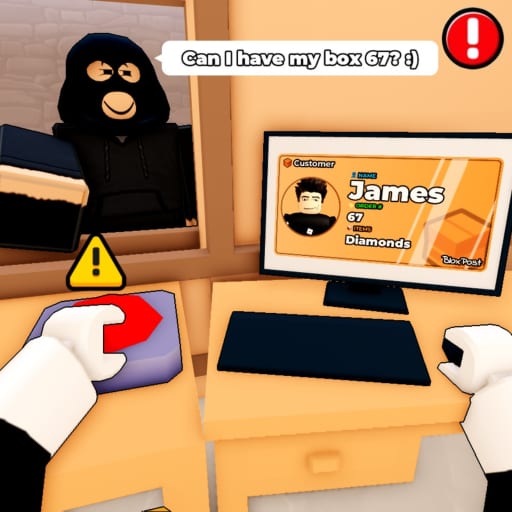
Mail or Jail Mobile and Console Controls
Touch and gamepad layouts for delivering mail on phone, tablet, Xbox, and PlayStation without extra mistakes.
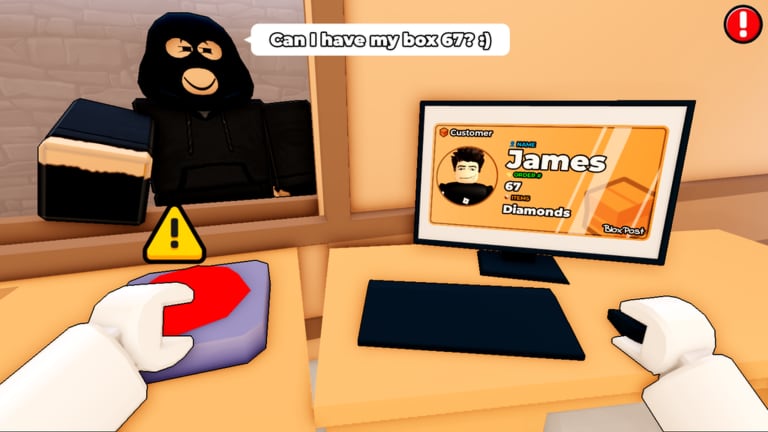
Mail or Jail runs on Desktop, Mobile, Tablet, and Console according to Delivery Day Studios. Not every player sits at a desk, and the Roblox postal sim punishes clumsy inputs the same on a phone as on a gaming PC—wrong IDs, missed thieves, and failed random events all feed the mistake counter until you are FIRED. This guide covers touch and gamepad control habits so you can finish all seven shifts from the couch or on the go.
Compare with desktop controls when you switch devices mid-campaign. The verification rules never change; only the bindings do.
Touch controls on mobile and tablet
Roblox mobile uses on-screen overlays:
- Left virtual joystick — Move your character around the depot and delivery streets.
- Right side drag — Look around. Swipe smoothly during thief chases; jerky camera loses targets behind corners.
- Jump button — Clear low obstacles during pursuits. Tap once deliberately instead of spamming.
- Action / interact button — Context prompt for truck unload, ID panel steps, deliveries, and arrests. This button is your lifeline; watch its icon change.
Tablets offer larger hit targets. If you play on iPad or Android tablets, increase Roblox UI scale in settings so the interact button does not sit under your thumb edge during ID reading.
Gamepad controls on console
Console players typically use Xbox or PlayStation controllers through Roblox:
- Left stick — Movement.
- Right stick — Camera.
- A / Cross — Primary confirm and interact, mirroring desktop primary click.
- B / Circle — Back or cancel in many Roblox menus; verify in-game before mashing during ID panels.
- Shoulder buttons — Some experiences map sprint or item use here; test at Shift start.
Sit closer to your display than a cinematic game demands. ID text is small; ten inches of TV distance turns verification into guesswork.
Truck unloading on small screens
Align the camera with the truck ramp before tapping interact. Mobile players often miss prompts because the action button appears while the camera still points at the cab. Walk backward until the cargo bay fills the screen, then grab parcels in stable order.
Forgotten boxes force return trips that collide with shift pacing. Treat unload like a checklist, not a minigame you can skip.
ID verification without a mouse
Touch and gamepad players lose pixel-perfect clicking but gain portability. Compensate with discipline:
- Stop moving before opening the ID UI so thumbs do not confirm accidentally.
- Read photo, name, and address aloud quietly—silly but effective on loud buses or shared rooms.
- Reject mismatches even when NPCs crowd the prompt zone during events.
- Use the wiki ID verification checklist until three-point matching is automatic.
Thieves exploit players who tap through dialogs quickly. Slow is smooth; smooth is employed through Shift 7.
Deliveries and doorstep prompts
House markers require you to stand in trigger zones. On mobile, inch forward until the interact icon highlights, then tap once. Double taps sometimes cancel or mis-register on laggy connections. If Roblox mobile feels sluggish, play on Wi-Fi before attempting full walkthrough marathons.
Console players should strafe with left stick micro-movements instead of rotating camera endlessly when the prompt flickers.
Thief chases with touch and sticks
Thief segments combine movement, camera, and interact on one screen:
- Start moving toward the thief before adjusting camera so you do not spin in place.
- Raise sensitivity slightly if Roblox settings allow faster right-stick turns during chases only—return to normal for ID reading.
- Tap interact the instant the arrest prompt appears; thieves exit streets faster on mobile than players expect.
If arrests fail repeatedly, practice in early shifts documented in Shift 1 tips before late-shift thief spikes.
Events and readability
Random events shrink safe camera angles and add motion. Mobile players should reduce graphics quality for stable frame rate; stutter causes missed prompts. Console players should disable film effects if Roblox exposes them.
Read survival tips for prioritization when events and deliveries conflict.
Mistake awareness on portable play
Portable sessions tempt casual play—Mail or Jail is not casual. Track mistakes with the shift mistake tracker. Stop when you hit warning thresholds; grinding while tired on a phone trains bad tap habits.
Prep checklist
- Read the controls hub for shared mechanics.
- Like the game and join group 372114481 for the published bonus.
- Redeem codes before long sessions.
- Study endings so fired runs do not surprise you on tablet.
- See Guides and our review for difficulty context.
Mobile and console are fully viable for Mail or Jail clears. Respect smaller UI, deliberate verification, and stable frame rates, and you can jail thieves and finish routes without desktop hardware.
Frequently Asked Questions
Quick answers players ask after every shift.
Can I beat all seven shifts on mobile?
Yes. Difficulty is identical; only controls differ. Use deliberate ID reading and the [mistake tracker](/tools/) while learning.
Why do interact prompts fail on phone?
Usually camera angle or lag. Square up to objects, use Wi-Fi, and compare tips on [desktop controls](/controls/desktop/) for prompt range expectations.
Is tablet better than phone for Mail or Jail?
Larger screens improve ID readability. Many players prefer tablet for verification-heavy shifts.
Where are console-specific thief tips?
Chase logic matches mobile: move, camera, interact. Practice in [Shift 1 tips](/shifts/shift-1-tips/) and [random events](/events/random-events/).